
Workable
Description: Workable is an online platform for posting jobs and managing the hiring process. Employers can create job listings, receive applications, track candidates, collaborate with team members, schedule interviews, and manage the overall hiring workflow with Workable.
Prerequisites:
- Application: Python (>=3.10) and Pip
- Python package: source-workable
Grab API credentials:
- Log into Workable.
- Click the user icon at the top right and select “Settings”.
- Under “RECRUITING”, select “Integrations” on the left.
- Locate “ACCESS TOKEN” and generate a new token.
- Carefully copy the new token for pipeline configuration.
Connection Properties:
- Connector Name: Workable
- Access Token: Workable Access token
- Subdomain: Workable sub-domain
Example YAML Configuration:
Without Type: Start date
version: 1
encrypt_credentials: false
plugins:
  extractors:
    - name: Workable_data
      connectorname: Workable
      config:
        access_token: <ACCESS TOKEN>
        sub_domain: <SUB DOMAIN>
      select:
       -Table1
       -Table2
      properties:
        since_timestamp: <>
With Type: Start date
version: 1
encrypt_credentials: false
plugins:
  extractors:
    - name: Workable_data
      connectorname: Workable
      config:
        access_token: <ACCESS TOKEN>
        sub_domain: <SUB DOMAIN>
      select:
       -Table1
       -Table2
      properties:
        since_timestamp: <>
Configure the Data Hub to connect Workable
- To start, Click the
smartlife Data Hubicon on the Navigation Pane.
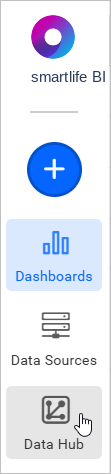
- Click
Add Pipelineand provide the name for the new pipeline.
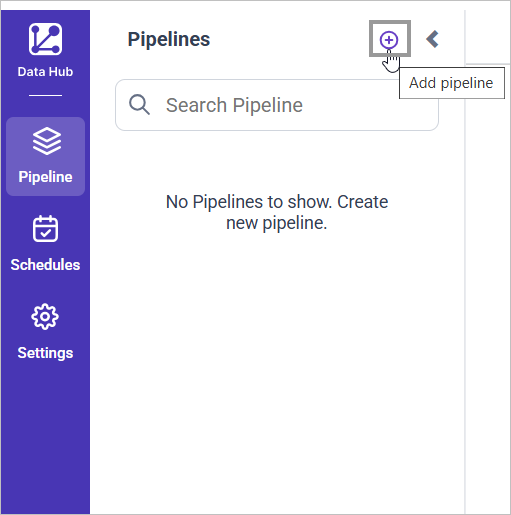
- Select the newly created pipeline and add the
Workabletemplate.
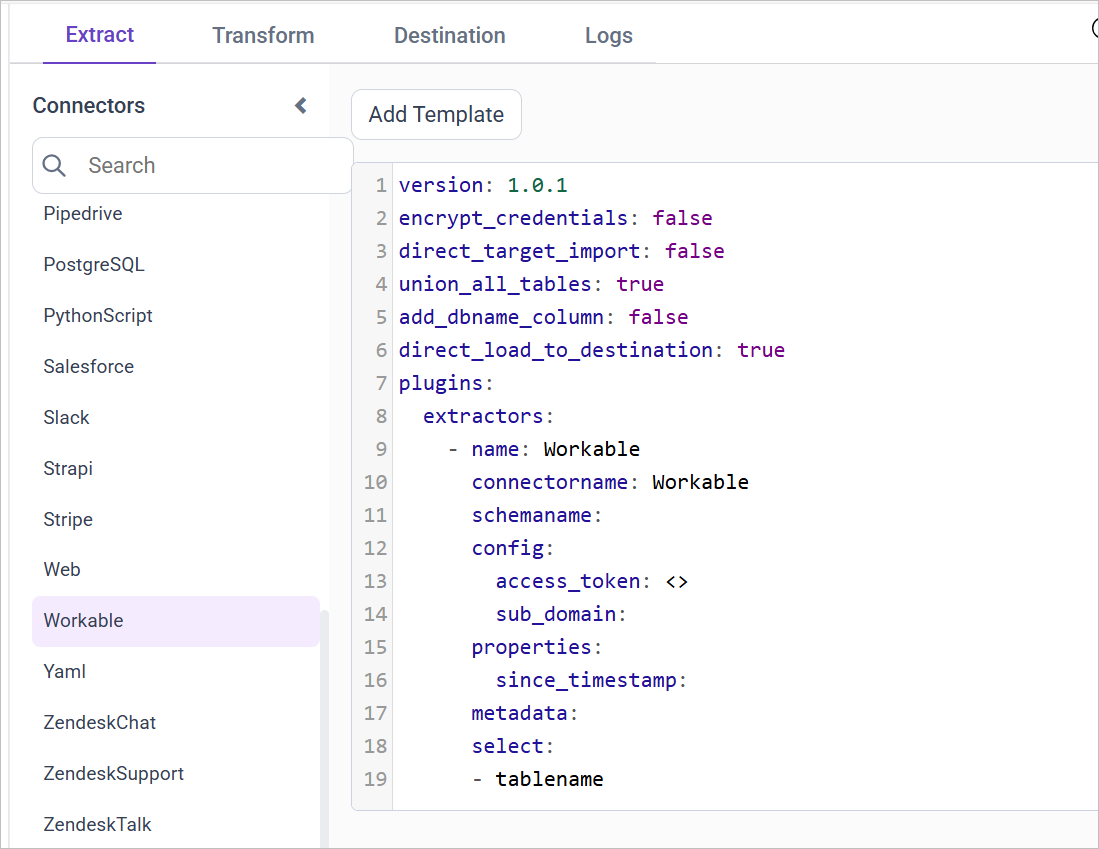
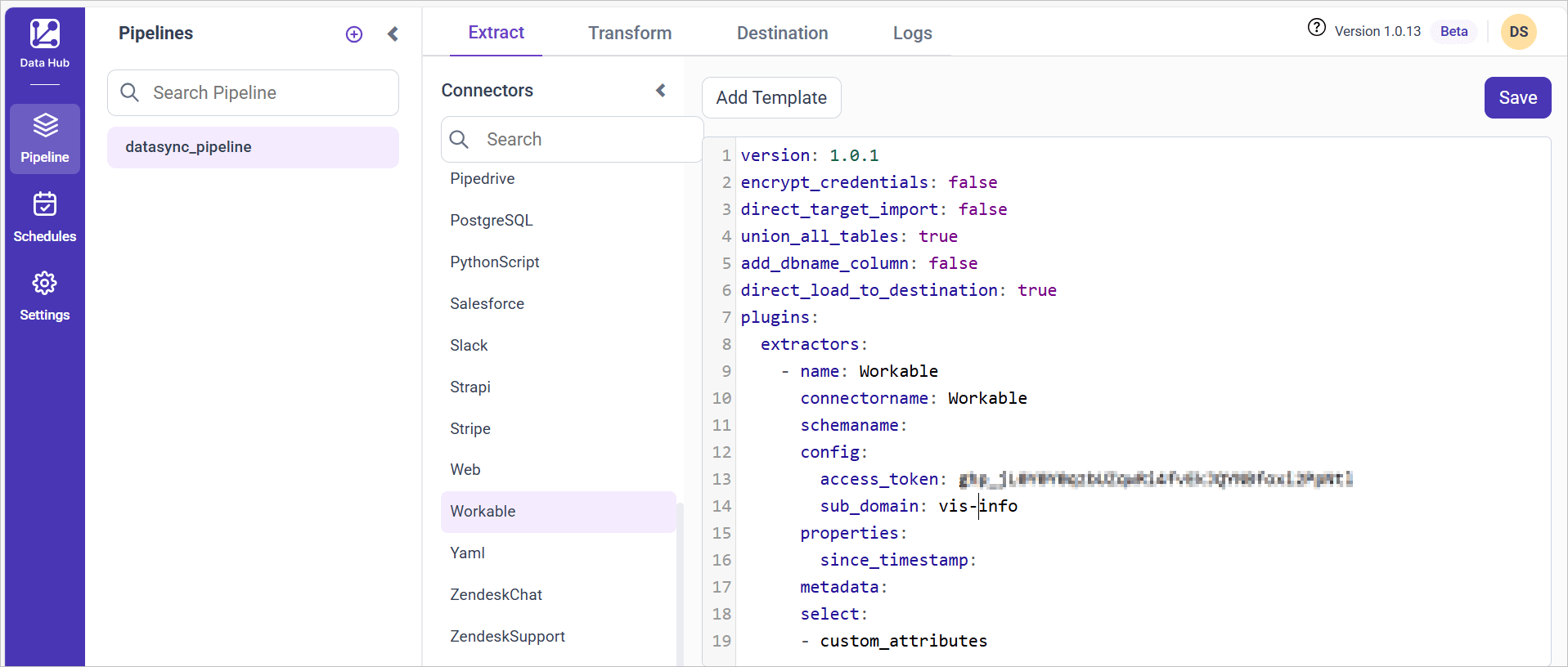
- Update the subdomain and access token in the template. Also, Update the resources on the
selectproperty and Click Save, choose the desired destination to save the pipeline.
- Creating a Pipeline in smartlife Data Hub automatically creates a Data Source in smartlife BI. The smartlife BI Data Source is a live data source to the destination database used in smartlife Data Hub. For more information on the relationship between smartlife Data Hub Pipeline and the associated Data Sources in smartlife BI , please refer to Relationship between smartlife Data Hub Pipeline and Associated Data Sources in smartlife BI
The available resources are supported in Workable
- members
- recruiters
- stages
- requisitions
- jobs
- custom_attributes
- events
- candidates
Warning:
1. The `Encrypt_Credentials` property should be set to false when updating the new access token on the template. If you have modified other properties, such as 'select' or 'account id', the `Encrypt_Credentials` property must be set to true.
2. The default lifetime of the access token is 1 hour. Therefore, you need to convert it to a long-lived access token in order to use the same token for 60 days. Existing tables should be maintained even if the token has expired or is being used as an invalid token.
Schedule Data Hub Job
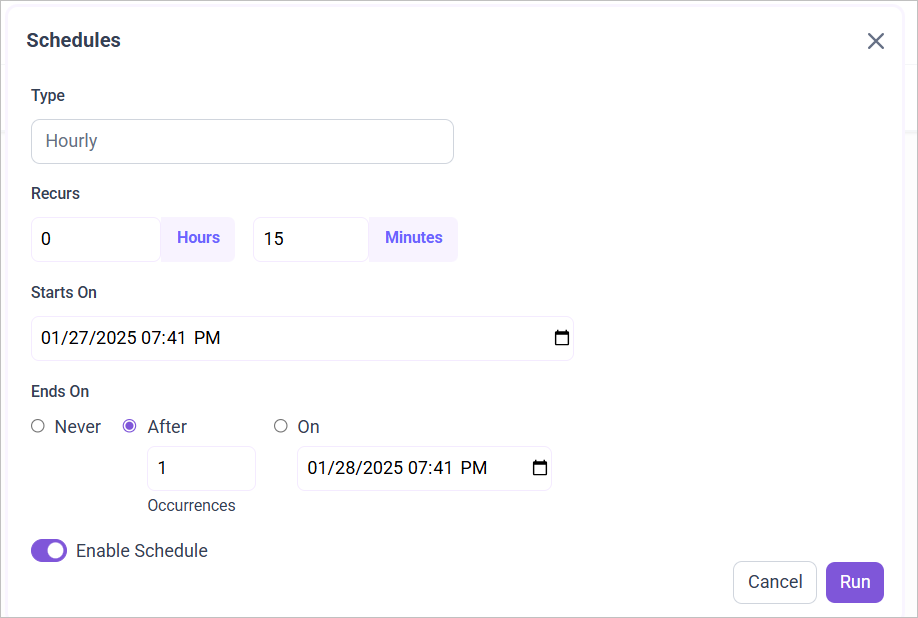
- To configure interval-based scheduling, click on the schedules tab and select the created pipeline and click on the schedule icon and configure it.

- For on-demand refresh, click
Run Nowbutton.
 .
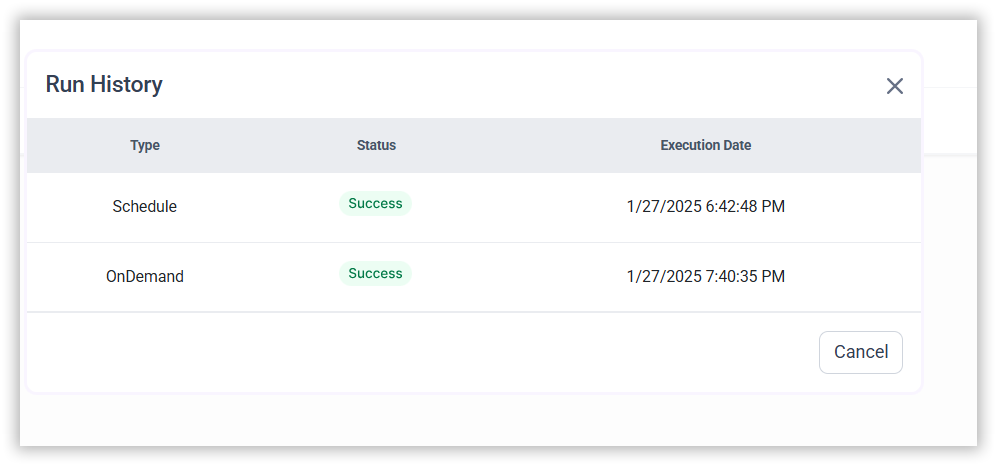
- The Schedule history can be checked using the history option as well as logs.
- Click on Logs to see if the run is completed and data source is created in smartlife BI.

- Click
Edit DataSourceOption to view the created tables.