
Salesforce Reports
Salesforce reports are powerful tools that allow users to analyze data, track performance, and make informed business decisions.They enable users to compile and analyze data from different sources within Salesforce, providing insights that can drive strategic decisions.
Grab Credentials for OAuth Option
To set up your pipeline, you need the client_idand client_secret
Example Configuration
version: 1.0.1
encrypt_credentials: false
plugins:
  extractors:
    - name: Salesforce Reports
      connectorname: Salesforce Reports
      config:
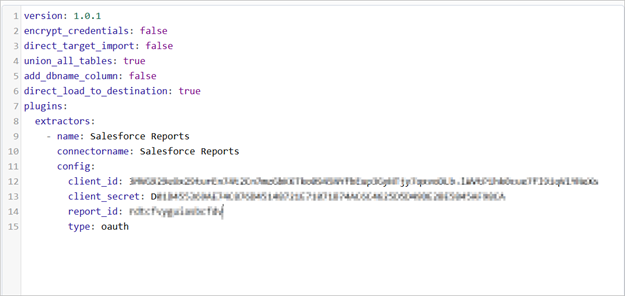
        client_id : <Client ID>
        client_secret : <Client Secret>
        report_id : <report ID>
        type: oauth
Grab Credentials for Export Option
To set up your pipeline, you’ll need your Salesforce user_name, password, and security_token. Use your login credentials for the user_name and password.
Obtain Security Token
Follow these steps to obtain the security_token:
- Log into Salesforce with your credentials.
- Click your profile picture/avatar at the top-right.
- Select “Settings” from the drop-down.
- Under “Personal Setup” in the sidebar, choose “My Personal Information” > “Reset My Security Token”.
- Click “Reset Security Token”.
- Check your email for the token sent by Salesforce.
Example Configuration
version: 1.0.1
encrypt_credentials: false
plugins:
  extractors:
    - name: Salesforce Reports
      connectorname: Salesforce Reports
      config:
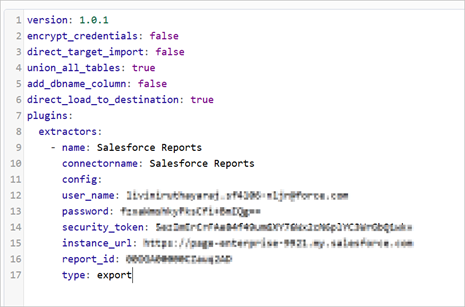
        username: <USERNAME>
        password: <PASSWORD>
        security_token: <SECURITY TOKEN>
        instance_url : <Instance URL>
        report_id : <report ID>
        type: export
Configure the Data Hub to connect Salesforce Reports
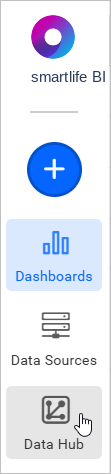
- To start, Click the
smartlife Data Hubicon on the Navigation Pane.
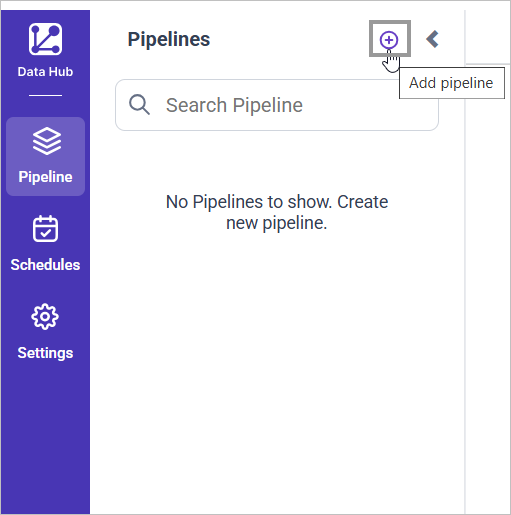
- Click
Add Pipelineand provide the name for the new pipeline.
- Select the newly created pipeline and then double click the
Salesforce ReportsConnector, from the list of available connectors and add template popup appears.
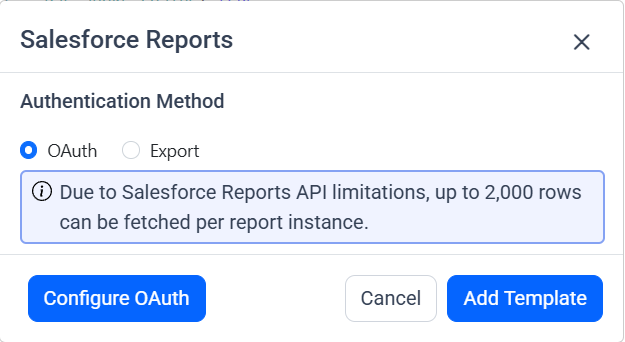
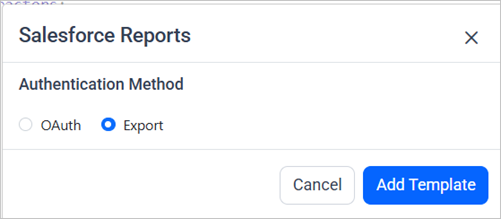
There are two methods to get authenticated for using Salesforce Reports:
- OAuth
- Export
For OAuth Authentication
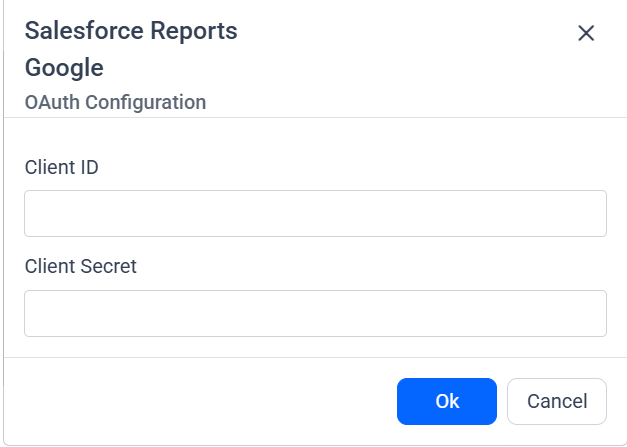
- Click the
Configure OAuthbutton. A Popup appears enter client id and client secret button and Click Ok button.
- Now You will be redirected to the salesforce authentication page.
- Once the redirection is completed. The Salesforce Reports template is added with client Id and secret.
For Export Option
- Double click the Salesforce Reports Connector, from the list of available connectors and add template popup appears.
- Choose the export option and click add template button.
- Add the necessary details in the YAML template and Click Save, choose the desired destination to save the pipeline.
- Creating a Pipeline in smartlife Data Hub automatically creates a Data Source in smartlife BI. The smartlife BI Data Source is a live data source to the destination database used in smartlife Data Hub. For more information on the relationship between smartlife Data Hub Pipeline and the associated Data Sources in smartlife BI , please refer to Relationship between smartlife Data Hub Pipeline and Associated Data Sources in smartlife BI

Schedule Data Hub Job
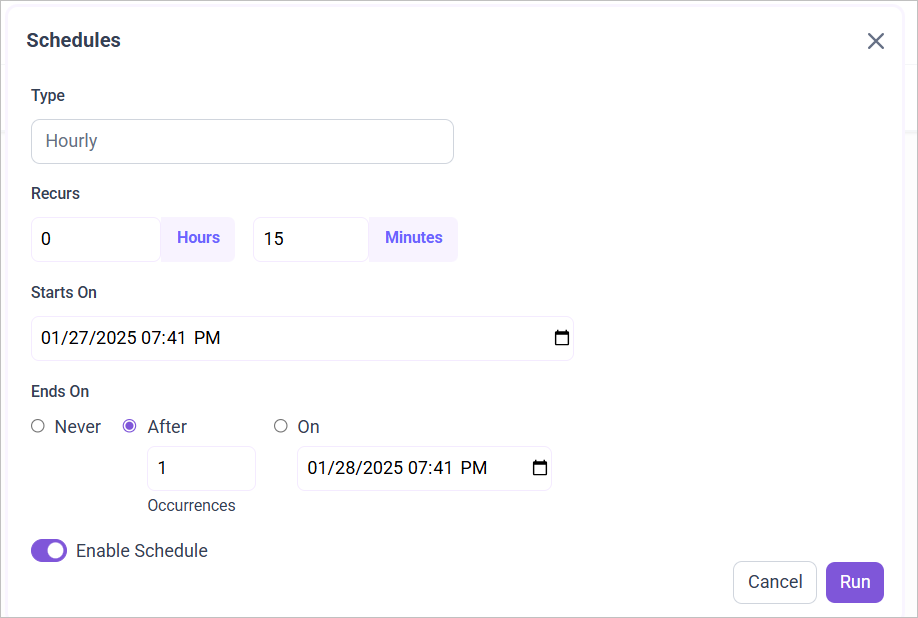
- To configure interval-based scheduling, click on the schedules tab and select the created pipeline and click on the schedule icon and configure it.

- For on-demand refresh, click
Run Nowbutton.

- The Schedule history can be checked using the history option as well as logs.
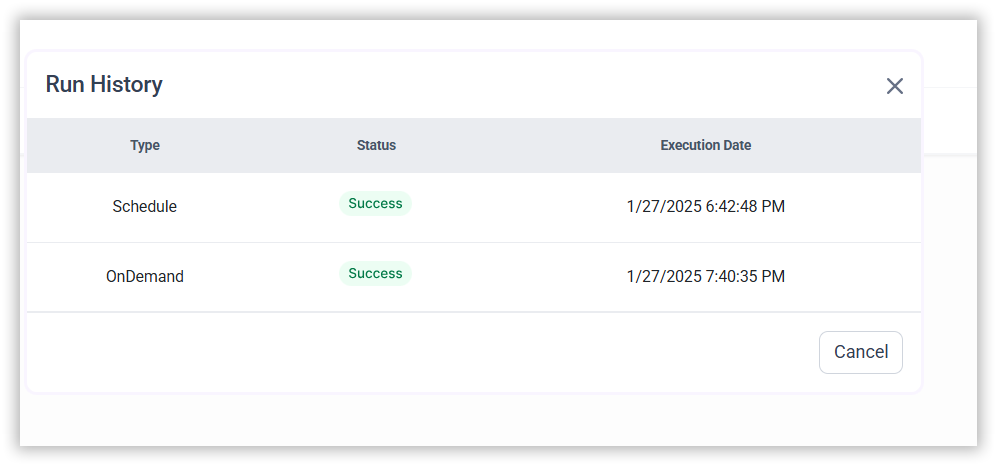
- Click on Logs to see if the run is completed and data source is created in smartlife BI.
- Click
Edit DataSourceOption to view the created tables.