Azure Active Directory Groups Synchronization
This section explains how to synchronize the imported Azure Active Directory groups and their users with the Azure Active Directory.
NOTE: Before synchronizing the Azure Active Directory groups, follow these steps:
- Configure Azure Active Directory Settings.
- Import groups from the Azure Active Directory to smartlife BI by referring to the following link Active Directory Group Import.
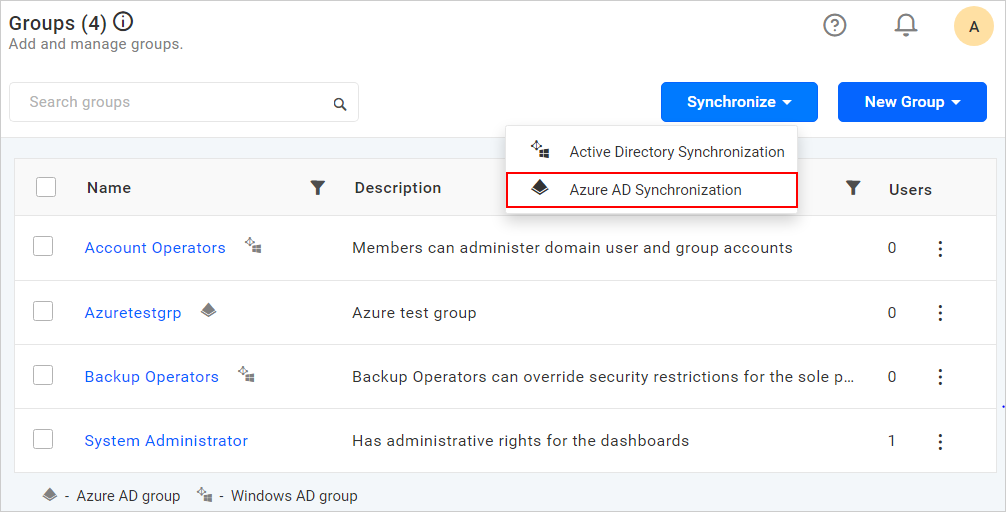
You can navigate to the group synchronization page from the groups page as shown in the following image.
Synchronize Groups
smartlife BI will list the Azure Active Directory groups that are already imported as shown in the following image.
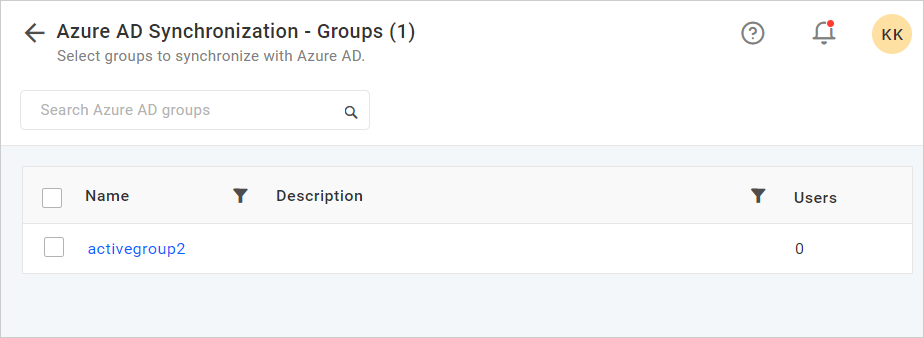
Choose the groups you want to synchronize and click Synchronize at the top.

Synchronization procedure
-
smartlife BI will update the group’s name and description from the Azure Active Directory Server.
-
smartlife BI will delete the groups if the group has been deleted from the Azure Active Directory Server.
-
smartlife BI will add or delete the user from the smartlife BI group if the user has been added or deleted from the Azure Active Directory Server group respectively.
If the new user is not present in the smartlife BI, then a new user account will be created in the smartlife BI and added to the group
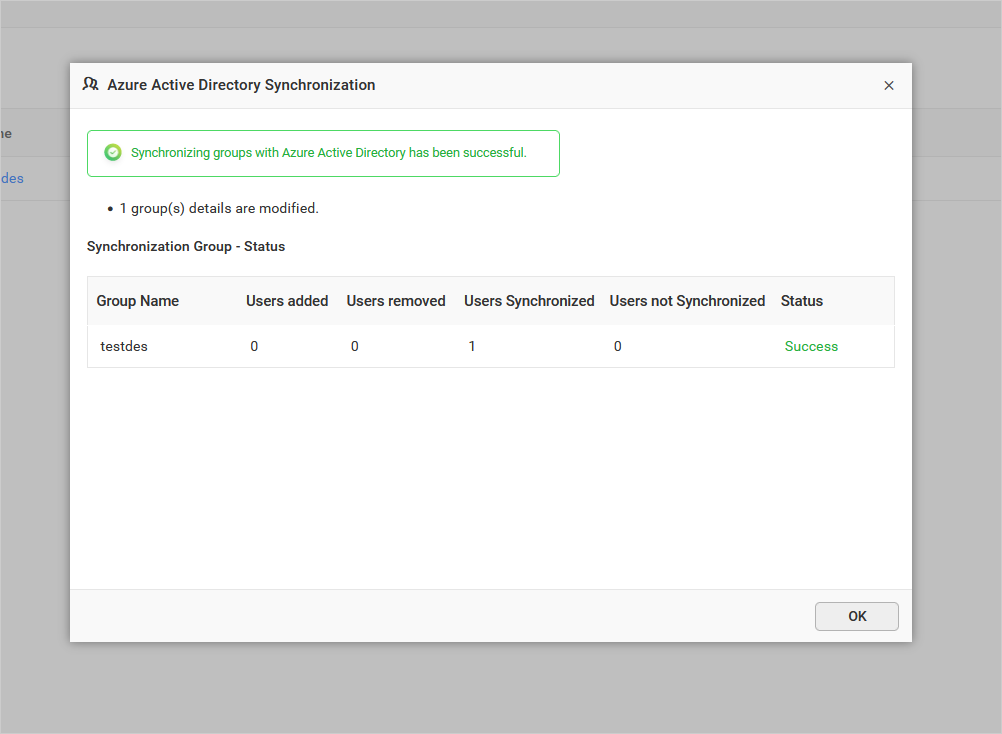
After synchronization is completed, the number of groups modified, deleted, and duplicated will be shown in the success message box as shown in the following image.
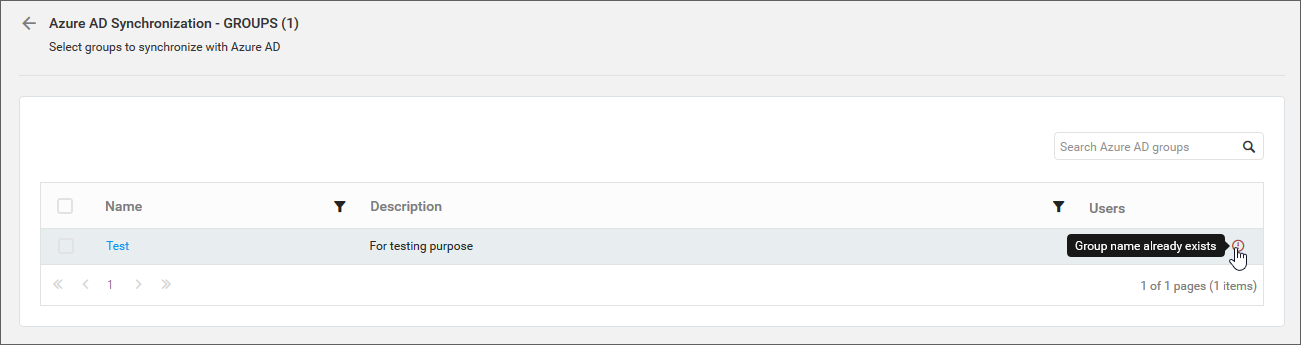
Duplicate Groups
Azure Active Directory groups that have the same group name as that of the smartlife BI groups (which are already present) will be marked as duplicate groups and will not be allowed to synchronize with Azure Active Directory.